


A Common requirement in any business site was to show Terms and Conditions page so that user consent can be taken for certain security aspects. To achieve this functionality in Power Pages one have to follow below steps
Step 1: Login to Power Pages Environment and navigate to Power Pages Management App and go to Site Settings and search for Authentication/Registration/TermsAgreementEnabled existing site setting and update value of it to true and save record as shown below

Step 2: After Step 1, navigate to Content Snippets and create below 3 new snippets as shown below
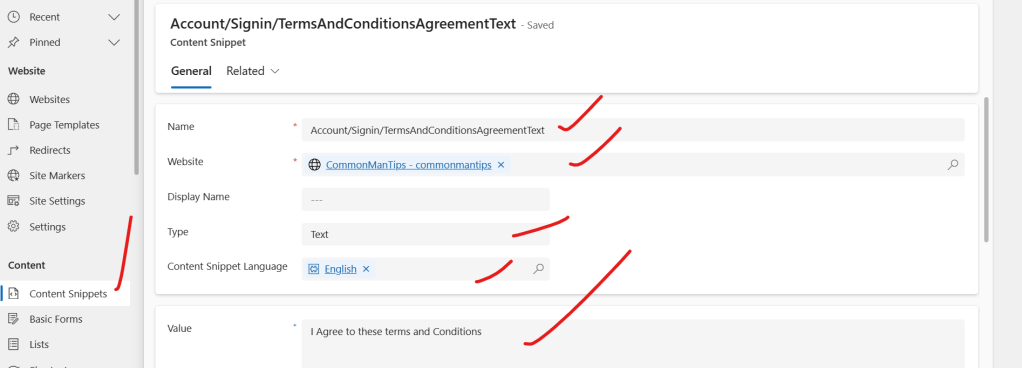
New Content Snippet 1 : To Show the text I agree to these terms and Conditions we have to create a new content snippet
Name : Account/Signin/TermsAndConditionsAgreementText
Website: Provide your website name(Power Pages)
Type : Text
Content Snippet Language: English
Value : I agree to these terms and Conditions
New Content Snippet 2: To show a button with text as Continue , a new Content Snippet to be created with the following values
Name:Account/Signin/TermsAndConditionsButtonText
Website:<Select your Power Pages website>
Type: Text
Content Snippet Language: English
Value : Continue

New Content Snippet 3: To show heading name of Terms and Condition Page as Terms and Conditions we have to create a new content snippet with the following values
Name:Account/Signin/TermsAndConditionsHeading
Website: <Select your existing website>
Type:Text
Content Snippet Language: English
Value: Terms and Conditions

So , consolidated 3 New Content Snippets looks like below

Step 3: After Step 2, go to make.powerpages.microsoft.com ,with Power Pages design Studio use Sync option to make the newly created snippets and site settings updates to persist permanently.
Step 4: After Step 3, navigate to the power pages website and click on Sign in / Register Tab and click on Azure AD or any other login button you will see below screen .
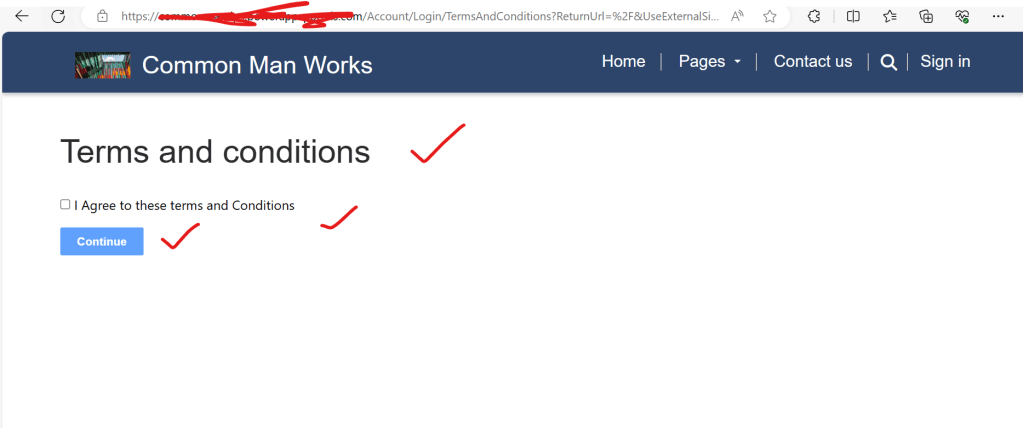
Note : It will take some time to reflect changes once you Sync Changes in Power Pages design studio for the selected environment.
Conclusion : In this way, one can easily show Terms and Conditions Page in Power Pages
Discover more from Common Man Tips for Power Platform, Dynamics CRM,Azure
Subscribe to get the latest posts sent to your email.
 Common Man Tips for Power Platform, Dynamics CRM,Azure