

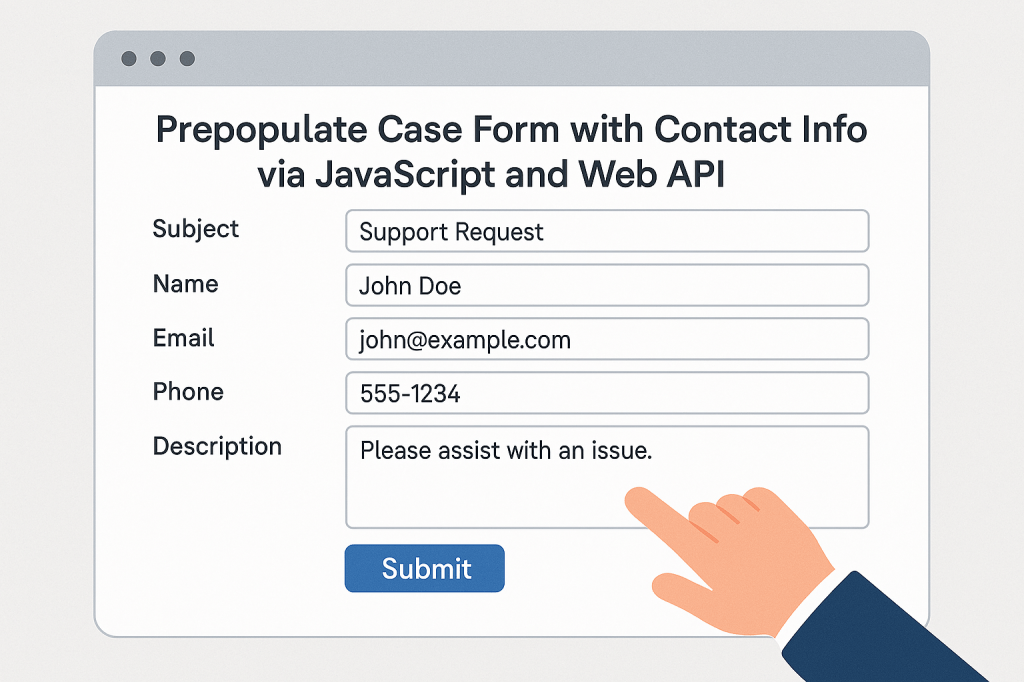
Another common scenario is to work on multiple tables using web api . In this post , we will see how to work with contact and incident(case) table to create a case
Step 1 : Create a webpage from power pages studio
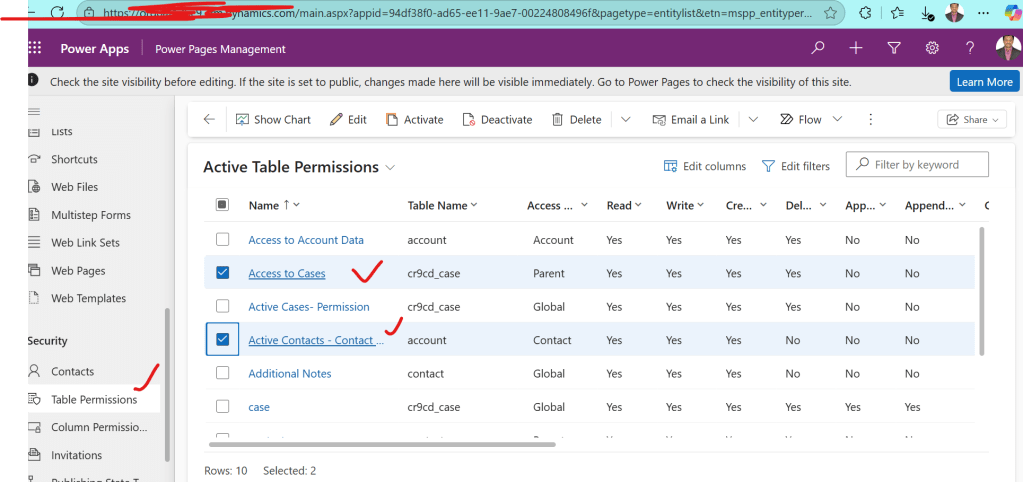
Step 2: For the 2 tables contact and incident (case) create respective table permissions for contact and case tables as shown below
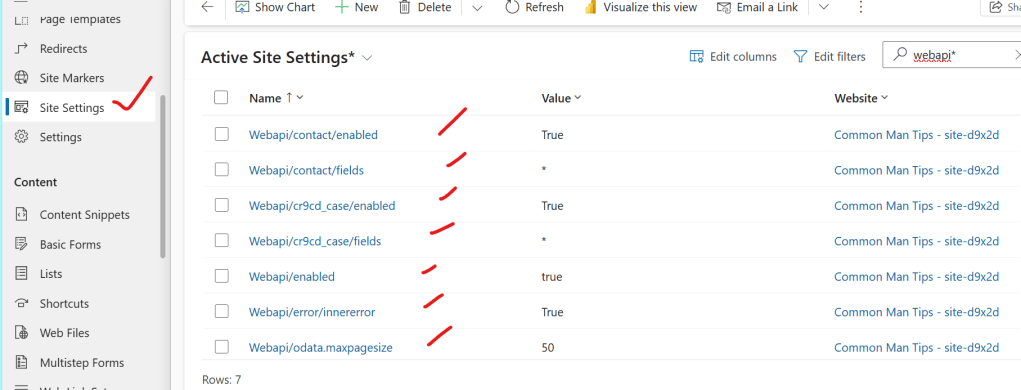
Step 3: Enable site settings for those 2 tables as shown below
Step 4 : Provide respective webroles to the page.
Step 5 : Now go the code view of page and then copy the below code
<div class="row sectionBlockLayout text-start" style="min-height: auto; padding: 8px;">
    <div class="container" style="display: flex; flex-wrap: wrap;">
      <div class="col-lg-12 columnBlockLayout" style="padding: 16px; margin: 60px 0px; min-height: 200px;"></div>
    {% assign currentContactId = request.params['contactid'] %}

<!DOCTYPE html>
<html>
<head>
    <h2>Power Pages - Autofill Contact Info with Validation and Submission</h2>
    <title>Power Pages - Autofill Contact Info with Validation and Submission</title>
    <script src="https://code.jquery.com/jquery-3.6.0.min.js"></script>
    <style>
        .spinner {
            display: none;
            width: 24px;
            height: 24px;
            border: 4px solid rgba(0, 0, 0, 0.1);
            border-left-color: #000;
            border-radius: 50%;
            animation: spin 1s linear infinite;
            vertical-align: middle;
        }

        @keyframes spin {
            to { transform: rotate(360deg); }
        }

        .toast {
            visibility: hidden;
            min-width: 250px;
            margin-left: -125px;
            background-color: #333;
            color: #fff;
            text-align: center;
            border-radius: 8px;
            padding: 16px;
            position: fixed;
            z-index: 1;
            left: 50%;
            bottom: 30px;
            font-size: 16px;
        }

        .toast.show {
            visibility: visible;
            animation: fadein 0.5s, fadeout 0.5s 2.5s;
        }

        @keyframes fadein {
            from { bottom: 0; opacity: 0; }
            to { bottom: 30px; opacity: 1; }
        }

        @keyframes fadeout {
            from { bottom: 30px; opacity: 1; }
            to { bottom: 0; opacity: 0; }
        }
    </style>
    <script>


    </script>
</head>
<body>
    <form id="caseForm">
        <label for="contact">Contact:</label>
        <select id="contact" name="contact" required>
            <option value="">-- Select Contact --</option>
            {% fetchxml contact_list %}
            <fetch version="1.0" output-format="xml-platform" mapping="logical" distinct="false">
              <entity name="contact">
                <attribute name="fullname" />
                <attribute name="contactid" />
                <order attribute="fullname" descending="false" />
              </entity>
            </fetch>
            {% endfetchxml %}
            {% for contact in contact_list.results.entities %}
                <option value="{{ contact.contactid }}">{{ contact.fullname }}</option>
            {% endfor %}
        </select>
        <span class="spinner" id="loadingSpinner"></span>

        <br><br>

        <label for="email">Email:</label>
        <input type="email" id="email" name="email" readonly required />

        <br><br>

        <label for="phonenumber">Phone Number:</label>
        <input type="text" id="phonenumber" name="phonenumber" readonly required />

        <br><br>

        <button type="submit">Submit Case</button>
    </form>

    <div id="toast" class="toast"></div>

    <script>


        $(document).ready(function () {


            $('#contact').on('change', function () {
                var contactId = $(this).val();
                if (contactId) {
                    getContactDetails(contactId);
                } else {
                    $('#email').val('');
                    $('#phonenumber').val('');
                }
            });

            $('#caseForm').on('submit', function (e) {
                e.preventDefault();
                const contactId = $('#contact').val();
                const email = $('#email').val();
                const phone = $('#phonenumber').val();

                if (!contactId || !email || !phone) {
                    showToast("All fields must be populated.");
                    return;
                }

                // Sample payload (customize per schema)
                const payload = {
                    "cr9cd_title": "Auto-created case",
                    "cr9cd_contact@odata.bind": "/contacts(" + contactId + ")",
                    "cr9cd_description": "Case auto-submitted from web form",
                    "cr9cd_contactemail": email,
                    "cr9cd_phone": phone
                };

                $.ajax({
                    url: "/_api/cr9cd_case",
                    type: "POST",
                    contentType: "application/json",
                    data: JSON.stringify(payload),
                    headers: {
                        "Accept": "application/json"
                    },
                    success: function () {
                        showToast("Case submitted successfully.");
                        $('#caseForm')[0].reset();
                    },
                    error: function (xhr, status, error) {
                        debugger;
                        console.error("Case submission error:", error);
                        showToast("Failed to submit case.");
                         $('#caseForm')[0].reset();
                    }
                });
            });

            function getContactDetails(contactId) {
                var apiUrl = "/_api/contacts(" + contactId.replace(/[{}]/g, '') + ")?$select=emailaddress1,telephone1";
                $('#loadingSpinner').show();

                $.ajax({
                    type: "GET",
                    url: apiUrl,
                    contentType: "application/json",
                    headers: {
                        "Accept": "application/json"
                    },
                    success: function (data) {
                        $('#email').val(data.emailaddress1 || '');
                        $('#phonenumber').val(data.telephone1 || '');
                        showToast("Contact details loaded successfully.");
                    },
                    error: function (xhr, status, error) {
                        console.error("Failed to retrieve contact data:", error);
                        $('#email').val('');
                        $('#phonenumber').val('');
                        showToast("Error fetching contact details.");
                    },
                    complete: function () {
                        $('#loadingSpinner').hide();
                    }
                });
            }

            function showToast(message) {
                var toast = $('#toast');
                toast.text(message).addClass('show');
                setTimeout(function () {
                    toast.removeClass('show');
                }, 3000);
            }
        });
    </script>
</body>
</html>

    </div>
  </div>
Step 6 : Save,publish and then perform the operation as shown below
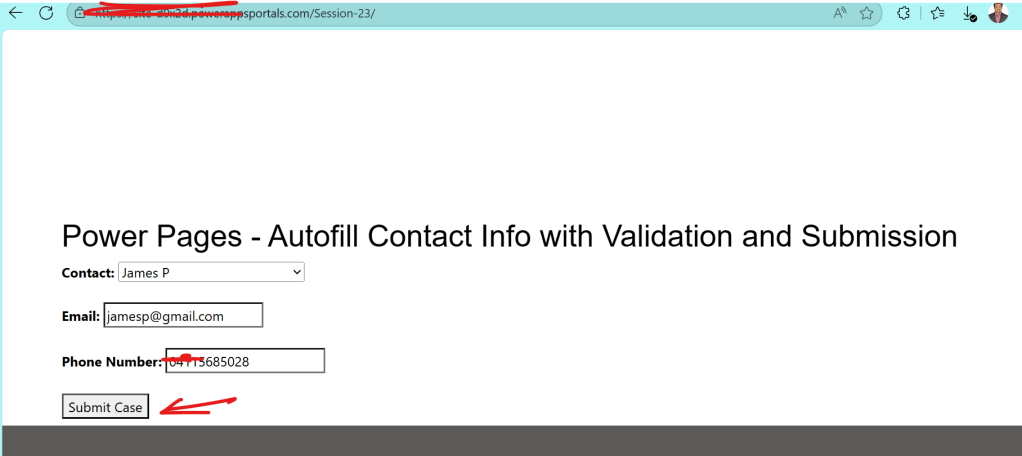
So on selection of contact from the list , contact details gets populated, and then on click on submit case a case will be created. In this way, one can easily write custom logic as per the requirement.
Note:
- You will encounter un authorized error / 403/401 if proper configurations steps 2 to 4 are not followed correctly.
Discover more from Common Man Tips for Power Platform, Dynamics CRM,Azure
Subscribe to get the latest posts sent to your email.
 Common Man Tips for Power Platform, Dynamics CRM,Azure