

Introduction:
In Power Automate, for doing validations Not Function will be used. As an example, an String variable used to work with Not function.
Step 1:
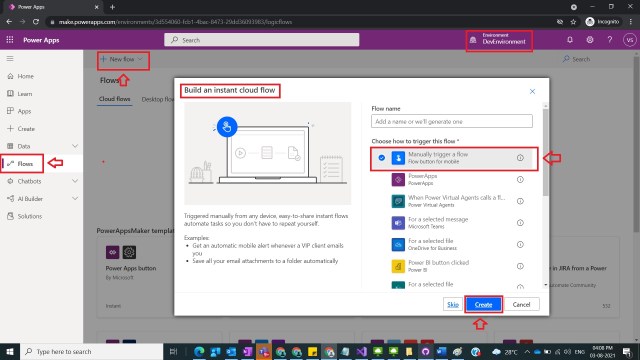
Login to the required Power Apps environment using URL make.powerapps.com by providing username and password and click on Flows on the left-hand side as shown in the below figure.

Step 2:
After Step 1, Click on New Flow and select instant cloud flow and provide the trigger as Manually trigger a flow and click on Create as shown in the below figure.
Step 3:
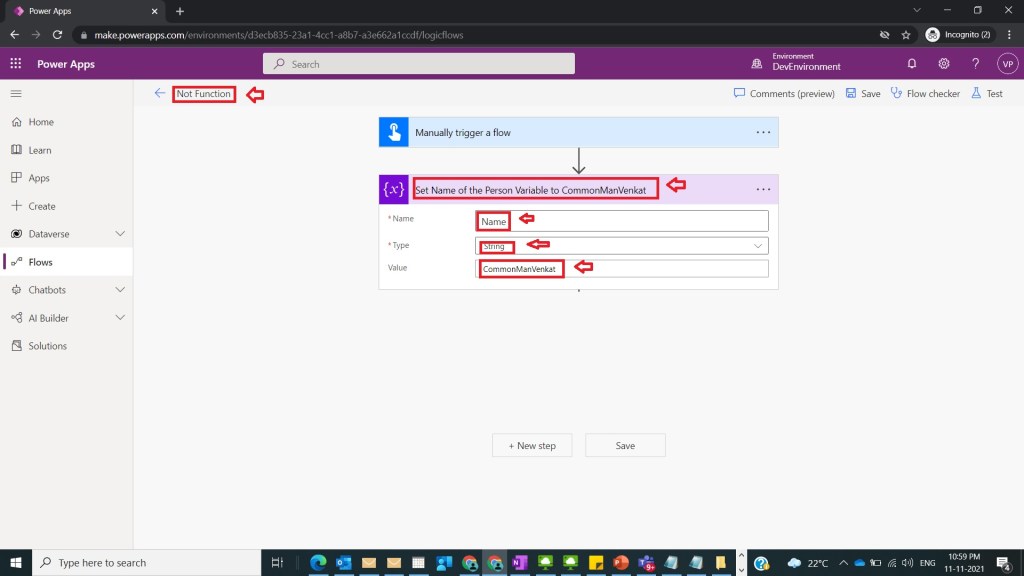
After Step 2, name flow as Not Function and take initialize variable and name it as Set Name of the Person Variable to CommonManVenkat with the following fields
Name : Name
Type : String
Value : CommonManVenkat
as shown in the below figure.
Step 4:
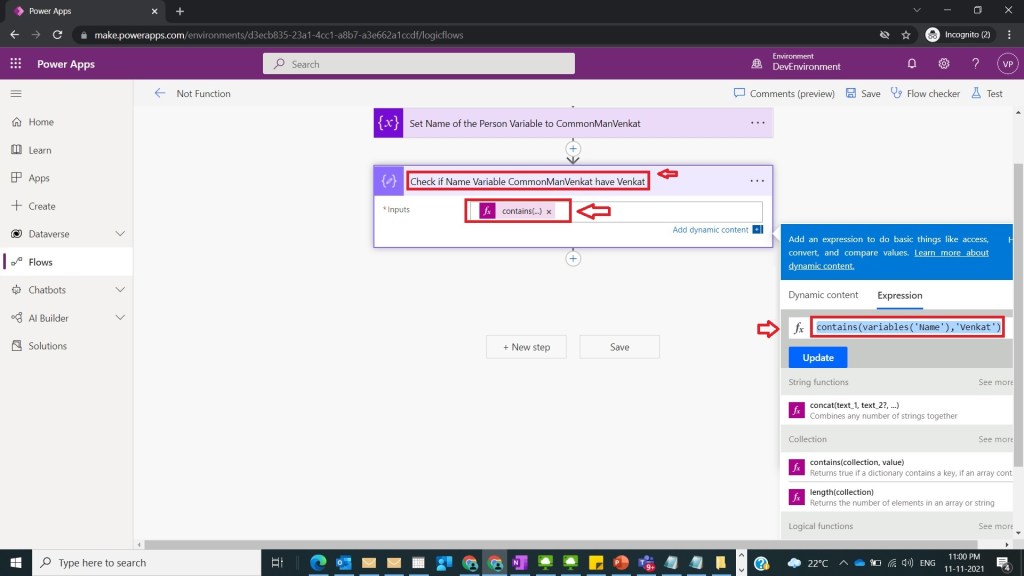
After Step 3, take compose action and name it as Check if Name Variable CommonManVenkat have Venkat and provide
Inputs: contains(variables(‘Name’),’Venkat’)
and click on ok/ update as shown in the below figure.
Step 5:
After Step 4, take compose variable and name it Set the Usage of Not Function in Name Variable and provide
Inputs : not(expression: boolean)
As
not(contains(variables(‘Name’),’Venkat’))
And click on ok/update as shown in the below figure.

Step 6:
After Step 5, run and test the flow and observe true and false values were returned shown in the below figure

Note:
- Make sure to save and run the flow whenever you try expressions.
- MS documentation is found at here
Conclusion: In this way we can use not function so that basic validation on strings in power automate can be done easily.
Discover more from Common Man Tips for Power Platform, Dynamics CRM,Azure
Subscribe to get the latest posts sent to your email.
 Common Man Tips for Power Platform, Dynamics CRM,Azure
Pingback: Rewind November 2021 – Common Man Tips for Power Platform, Dynamics CRM,Azure