

Introduction:
In order to get details of related entity for the selected entity without separate retrieve call we can leverage Expand Query .As a business scenario for the same vaccination use case extracting details of accounts that are present in list of contacts who took vaccination.
Step 1:
Login to the required Power Apps environment using URL make.powerapps.com by providing username and password and click on Flows on the left-hand side as shown in the below figure.

Step 2:
After Step 1, Click on New Flow and select instant cloud flow and provide the trigger as Manually trigger a flow and click on Create as shown in the below figure.

Step 3:
After Step 2, name the flow as List Rows – Expand Query take another step and take initialize variable and name it as Initialize variable – Set ConsolidatedDetails Array and provide inputs like below
Name : ConsolidatedDetails
Type : Array
Value :
as shown in the below figure.

Step 4:
After Step 3, select new action and under Data verse Connector and select action List Rows and name it as List rows – Contacts on the contact entity and provide the following inputs as below
Table name : Contacts
Select columns : fullname,telephone1,contactid,_parentcustomerid_value
Filter rows : (cr5bc_vaccinationcompleted eq true) and (parentcustomerid_account/accountid ne null)
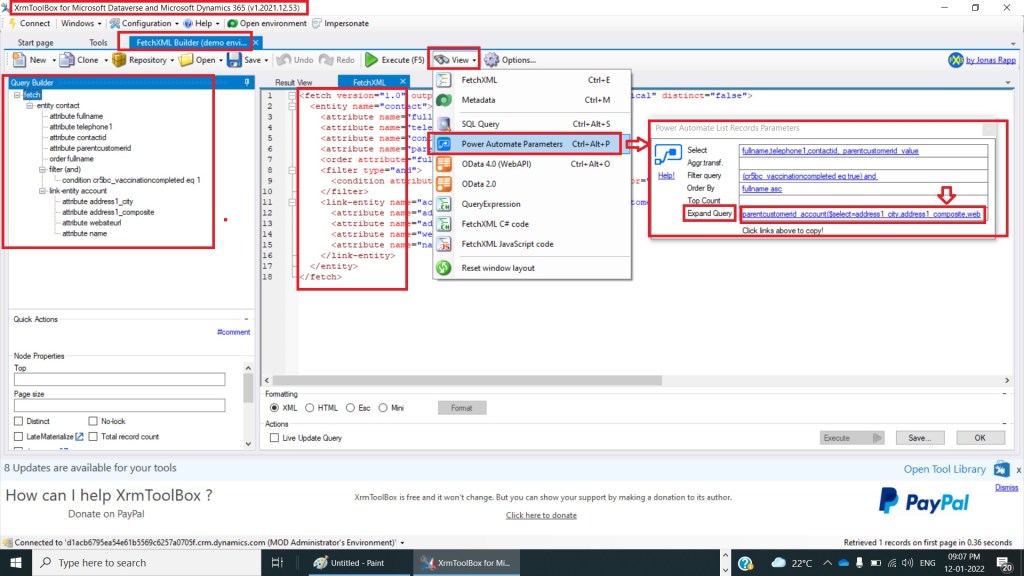
Expand Query : parentcustomerid_account($select=address1_city,address1_composite,websiteurl,name)
as shown in the below figure.

Step 5:
After Step 4, Take Apply to Each Action and provide value as
outputs(‘List_rows_-_Contacts’)?[‘body/value’]
And take Set Variable name it as Append to array variable and provide the following values as
Name : ConsolidatedValues [ Select Initialize Array variable from Drowdown]
Value :
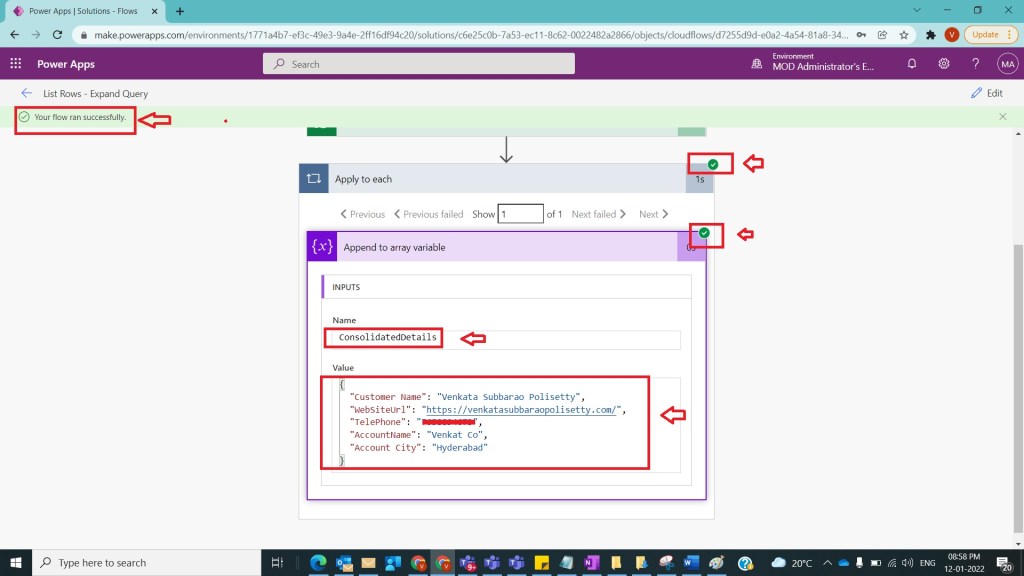
{
“Customer Name”: items(‘Apply_to_each’)?[‘fullname’],
“WebSiteUrl”: items(‘Apply_to_each’)?[‘parentcustomerid_account/websiteurl’],
“TelePhone”: items(‘Apply_to_each’)?[‘telephone1’],
“AccountName”: items(‘Apply_to_each’)?[‘parentcustomerid_account/name’],
“Account City”: items(‘Apply_to_each’)?[‘parentcustomerid_account/address1_city’]
}
as shown in the below figure.

Step 6:
After Step 5, save, test, and run the flow and observe the details as shown in the below figure.
Note:
- One can easily form expand query by the use of XRM Tool Box ,Fetchxml Builder and form fetchxml with link-entity and then click on View -> Power Automate Parameters -> Power Automate List Records Parameters popup and under Expand Query click on the content link where query is there so that you can copy the query and go to Step 4 and provide Expand Query as shown in the below figure.
- Make sure to saveand run flow.
- Microsoft Documentation Details about expand query can be found here .
Conclusion: In this way one can easily extract details of related entities linked to the base entity using expand query.
Discover more from Common Man Tips for Power Platform, Dynamics CRM,Azure
Subscribe to get the latest posts sent to your email.
 Common Man Tips for Power Platform, Dynamics CRM,Azure
Pingback: Rewind January 2022 – Common Man Tips for Power Platform, Dynamics CRM,Azure