

Introduction:
In Power Platform, at times we must omit the spaces that are present inside a string. To achieve this functionality Trim function in Power Automate can be used. As an example, String variable name was used to explain Trim functionality.
Step 1:
Login to the required Power Apps environment using URL make.powerapps.com by providing username and password and click on Flows on the left-hand side as shown in the below figure.

Step 2:
After Step 1, Click on New Flow and select instant cloud flow and provide the trigger as Manually trigger a flow and click on Create as shown in the below figure.

Step 3:
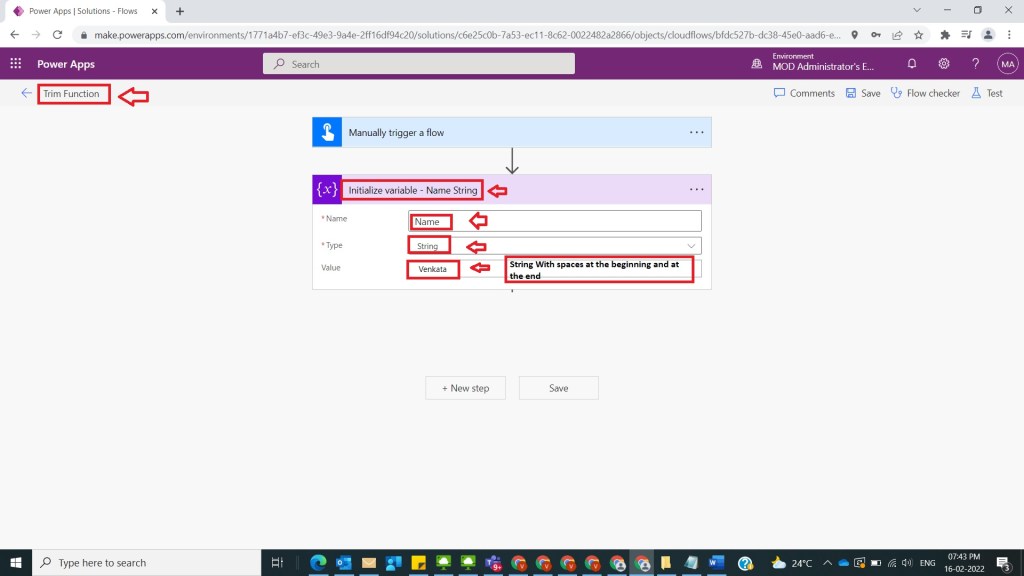
After Step 2, name the flow as Trim Function and take a parallel branch and one side of branch take an initialize variable and name it as Initialize variable – Name String and provide values
Name: Name
Type: String
Value: ” Venkata “
as shown in the below figure.
Step 4:
After Step 3, take compose action and provide the inputs as trim function which Trims leading and trailing whitespace from a string with the following syntax
trim(text: string)
as
trim(variables(‘Name’))
as shown in the below figure.

Step 5:
After Step 4, save and test the flow and observe the results as shown in the below figure.

Note:
- Make sure to save and run the flow whenever you try expressions.
- Trim function will only remove spaces before and after the string , not in between 2 strings.
Conclusion: In this way we can use trim function in power automate to trim spaces starting and ending of the string to achieve customer functionality.
Discover more from Common Man Tips for Power Platform, Dynamics CRM,Azure
Subscribe to get the latest posts sent to your email.


Pingback: Rewind February 2022 – Common Man Tips for Power Platform, Dynamics CRM,Azure