


Introduction:
In Dynamics 365 CRM, for certain requirements we need to get header values that are present in a record. We can get values with form context. As an example, on contact record form context was used to retrieve value of owner.
Step 1:
Login to the required environment and select required solution [Contact Customizations Solution in this case] as shown in the below figure.

Step 2:
After Step 1, select contact web resource in solution and click on Edit as shown in the below figure.

Step 3:
After Step 2, below code to be used to get the values that were present in header field of contact record
var headerownername;
if(formContext.getControl(“header_ownerid”)!=null)
{
headerownername=formContext.getControl(“header_ownerid”).getAttribute().getValue()[0].name;
}
As shown in the below figure

Step 4:
After Step 3, keep the above code snippet inside a function and register it on form load event of contact table(entity) form and final code looks like below
if (typeof (ContosoVaccination) == “undefined”)
{
var ContosoVaccination = {__namespace: true};
}
if (typeof (ContosoVaccination.Scripts) == “undefined”)
{
ContosoVaccination.Scripts = {__namespace: true};
}
ContosoVaccination.Scripts.ContactForm =
{
handleOnLoad: function (executionContext)
{
console.log(‘on load – contact form’);
showDialog(executionContext);
},
__namespace: true
}
function showDialog(executionContext)
{
let formContext = executionContext.getFormContext();
if (formContext !== null && formContext != ‘undefined’)
{
var headerownername;
if(formContext.getControl(“header_ownerid”)!=null)
{
headerownername=formContext.getControl(“header_ownerid”).getAttribute().getValue()[0].name;
}
var confirmStrings =
{
text:”Owner Details : “+ headerownername,
title:”Header value” ,
confirmButtonLabel:”Yes”,
cancelButtonLabel: “No”
};
var confirmOptions = { height: 200, width: 450 };
Xrm.Navigation.openConfirmDialog(confirmStrings, confirmOptions).then(
function (success) {
if (success.confirmed)
console.log(“Dialog closed using Yes button.”);
else
console.log(“Dialog closed using No button or X.”);
});
}
}As shown in the below figure

Step 5:
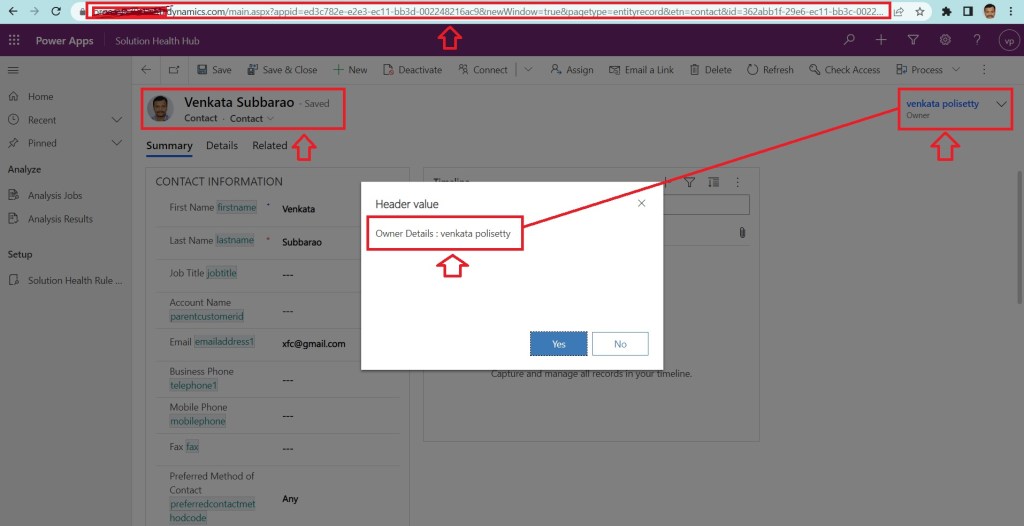
After Step 4, save Webresource and publish it and publish all the customisations and open a contact record and observe dialog with header value title and value as shown in the below figure.
Note:
- Make sure to publish all customizations and upload JavaScript (js) file.
Conclusion: In this way, one can easily get header values Webresource(javascript).
Discover more from Common Man Tips for Power Platform, Dynamics CRM,Azure
Subscribe to get the latest posts sent to your email.
 Common Man Tips for Power Platform, Dynamics CRM,Azure
Pingback: Back To Basics : Curated List of Articles in a Single Page – Common Man Tips for Power Platform, Dynamics CRM,Azure