

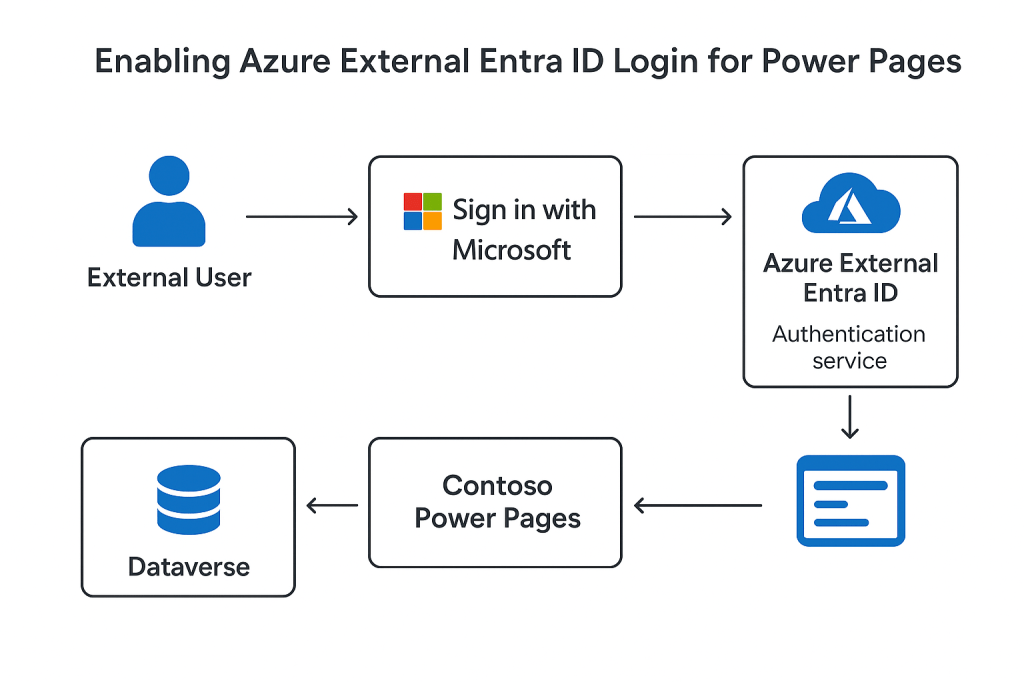
Contoso Motors is a large automotive service company.
They have built a Power Pages customer portal for their external partners and customers to:
- Book service appointments
- View vehicle status
- Access invoices and history
Currently, Contoso’s portal uses basic authentication. Customers have to create separate portal credentials — leading to confusion, forgotten passwords, and high support requests.
To improve user experience, Contoso wants external users to log in using their existing Microsoft accounts or corporate identities — without creating a separate portal login.
The solution? Azure External Entra ID integration with Power Pages.
🎯 Objective
Enable Single Sign-On (SSO) for the Contoso portal so that:
- Customers use their existing work, school, or personal Microsoft accounts to log in
- External partners sign in with their corporate Azure AD accounts
- Portal authentication is secure, seamless, and scalable
🛠 Implementation Steps
Step 1 — Register the Portal in Azure Entra ID
Contoso’s developer goes to Microsoft Entra admin center → App registrations and creates a new application called ContosoPortal.
They set the Redirect URI to:
https://contoso.powerappsportals.com/signin-oidc
They record:
- Application (client) ID
- Directory (tenant) ID
Step 2 — Create a Client Secret
In the app registration, they navigate to Certificates & Secrets → New client secret.
They copy and store the secret securely for later configuration.
Step 3 — Configure Power Pages to Use Entra ID
In Power Pages Design Studio, they go to:
Set up → Identity providers → Microsoft Entra ID
They provide:
- Tenant ID
- Client ID
- Client Secret
- Authority URL:
https://login.microsoftonline.com/<tenantID>/v2.0
They save the configuration.
Step 4 — Configure Advanced Settings (Optional)
Using the Portal Management app, they define additional settings to customize authentication:
| Setting Name | Value Example |
|---|---|
| Authentication/OpenIdConnect/Entra/Authority | https://login.microsoftonline.com/<tenantID>/v2.0 |
| Authentication/OpenIdConnect/Entra/ClientId | <your-client-id> |
| Authentication/OpenIdConnect/Entra/ClientSecret | <your-client-secret> |
| Authentication/OpenIdConnect/Entra/RedirectUri | https://contoso.powerappsportals.com/signin-oidc |
| Authentication/OpenIdConnect/Entra/ResponseType | code |
| Authentication/OpenIdConnect/Entra/Scope | openid profile email |
Step 5 — Test the Login
The developer publishes the portal. On the login page, they now see a “Sign in with Microsoft” button.
They click it and are redirected to the Microsoft login screen.
After signing in with a personal or corporate account, they return to the portal — authenticated and ready to use.
Dataverse automatically creates a Contact record for the user for role mapping and permissions.
📌 Outcome
Contoso Motors now offers:
- Seamless login experience for external users
- Reduced support tickets for forgotten passwords
- Enhanced security via Microsoft Entra’s authentication policies
- Simplified identity management
🌐 Why This Works Well
By using Azure External Entra ID, Contoso:
- Achieves Single Sign-On for external users
- Leverages Entra ID’s multi-factor authentication and conditional access policies
- Enables scalable identity management for millions of external users
💡 Tips for Real-World Usage
- Use conditional access policies in Entra ID for stronger security.
- Customize the login experience via Entra branding settings.
- Monitor portal authentication via Entra ID sign-in logs.
- Map external identities to Dataverse Contacts for role-based access control.
🚀 Final Thought
In this scenario, Contoso Motors transformed their customer portal into a modern, secure, and frictionless platform by leveraging Azure External Entra ID with Power Pages.
This approach not only improves user experience but also strengthens identity management and security — making it a best practice for modern Power Pages deployments.
Discover more from Common Man Tips for Power Platform, Dynamics CRM,Azure
Subscribe to get the latest posts sent to your email.
 Common Man Tips for Power Platform, Dynamics CRM,Azure