


During my discussion with community members, few of them approached me whether we can use Microsoft fabric and show the data in their websites for internal users only. I felt that creating a website and building a page to just show the data for visibility purposes? Is there any easy way that one can build with Low code / No Code way. Then I started my integration experiments with Microsoft Fabric and saw Fabric connector present in power apps which is used to store data in a virtual table in dataverse. Use this virtual table as a datasource in a webpage in power pages and show it as a read only list and give the respective access to the people who required that access. Here is the step by step process how this can be achieved.
Step 1 :
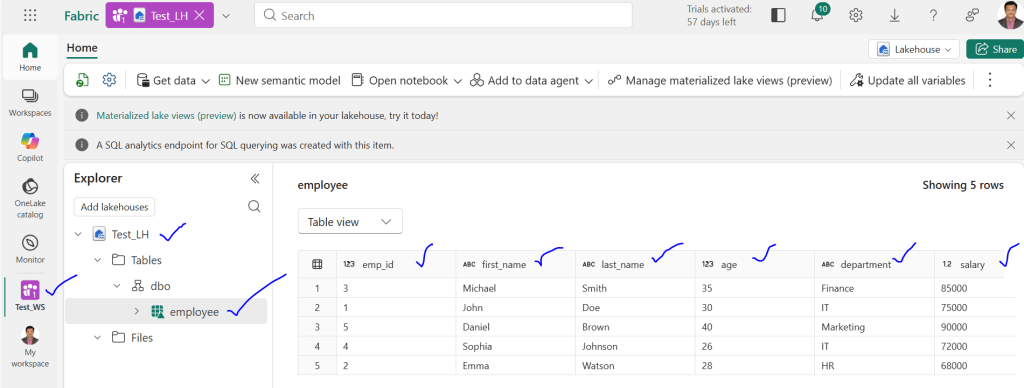
Go to Fabric workspace of your organization tenant and create a workspace and then inside workspace create a lake house and then create a table called employee with the respective columns as shown below.
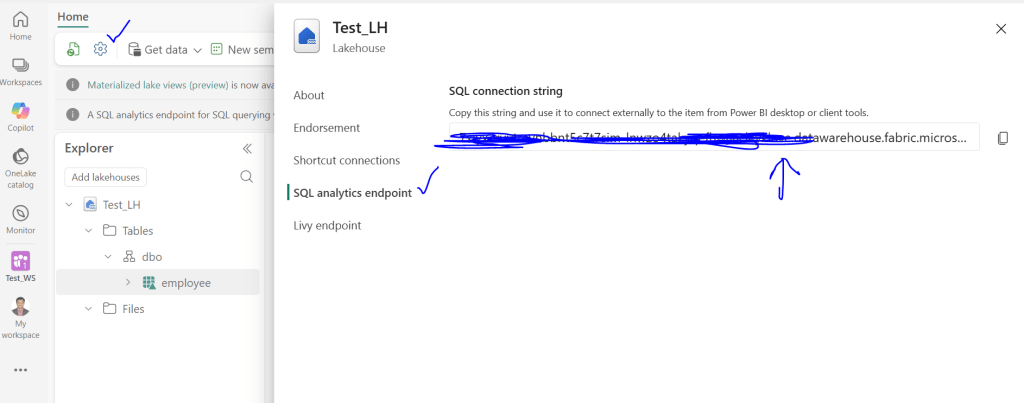
Step 2 : After creation of table in step 1 , then go to lake house in the above example Test_LH ->settings gear icon->Select SQL Analytics Endpoint -> Copy the connection string as shown below
Step 3 : After step 2, go to power apps and then create a new virtual table and you will see new table for external data wizard and establish connection to Fabric by selecting Microsoft Fabric connector after connection is established you should see tick mark as shown below

Step 4 : After step 3, select workspace and lake house click next and then select employee table click next and then wait for few seconds and see dataverse will fetch details of the employee table that is present in Microsoft Fabric with all the columns as shown below
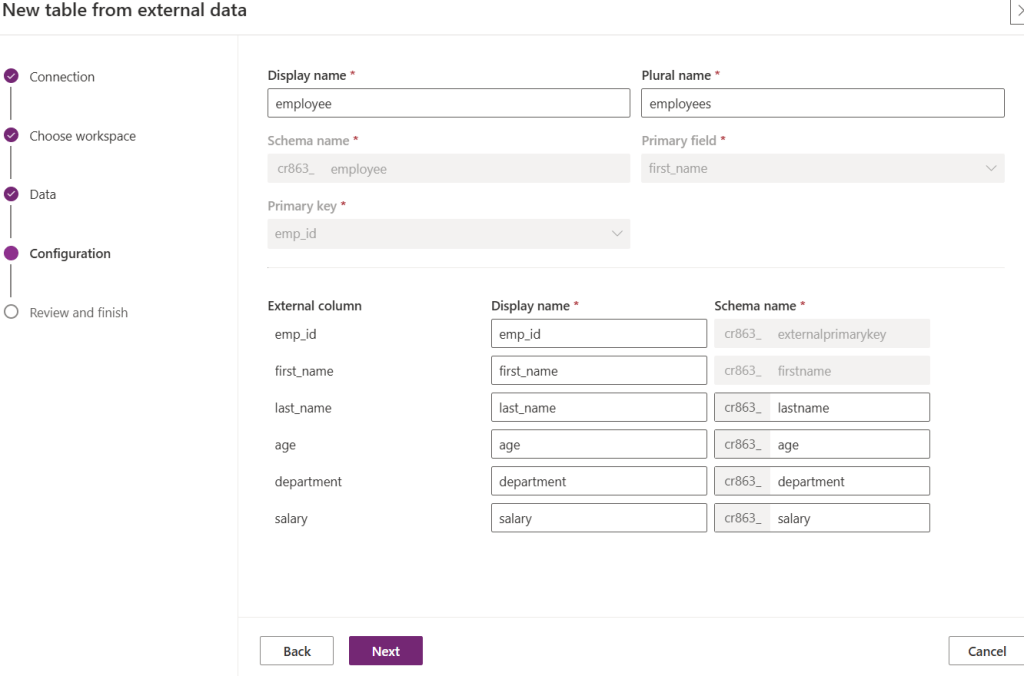
Step 5 : After Step 4, click next and finish as shown below so that a virtual table employee will gets created in dataverse

Step 6 : After Step 5, from power apps navigate to power pages by navigating through power platofrom and power pages as shown in below figure

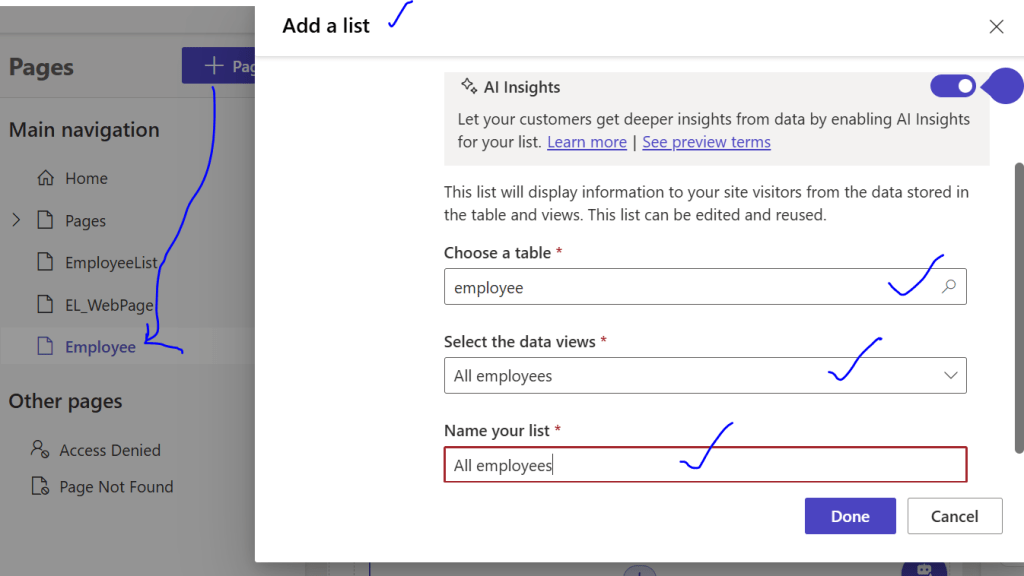
Step 7: After Step 6, go to the power pages website and create a webpage name it as Employee and then select blank page. In the deisgner of blank page, select list and then in the list select add list -> Select table as employee and select the data views as All employees and Name your list as All Employees and then click on Done as shown below
Step 8 : After step 7, then in the design mode of portal you should be able to see all the columns present in the step 1 workspace table and then click on preview and then you should be able to see the employee details for all anonymous users as shown below

In this way one can easily see data that is present in Microsoft fabric in power pages without writing a single line of code, which is secure,robust.
Note:
- For Auto sync data from Fabric to Power Pages we need to add some Pro code to this implementation.
- This website shown is in development environment, if you want this to be available for production purpose for anonymous users then suitable plan should be taken as per this below pricing calculator https://www.microsoft.com/en-in/power-platform/products/power-pages/pricing.
- This implementation is appropriate for smaller datasets; however, for datasets containing millions of records, additional components must be incorporated to ensure a scalable and robust architecture.
Discover more from Common Man Tips for Power Platform, Dynamics CRM,Azure
Subscribe to get the latest posts sent to your email.

