

1. Introduction
Modern enterprise applications require more than just the ability to capture and display business data. Users also need to evaluate performance, identify trends, monitor KPIs, and execute informed decisions as part of their routine daily workflows.
Imagine a sales manager working within a Power Apps application. While they can efficiently create opportunities, modify customer profiles, and track sales activities, getting a holistic view of regional performance, monthly revenue, sales targets, and pipeline trends traditionally forces them to abandon their application and open separate Power BI reports. This context-switching leads to a fragmented user experience.
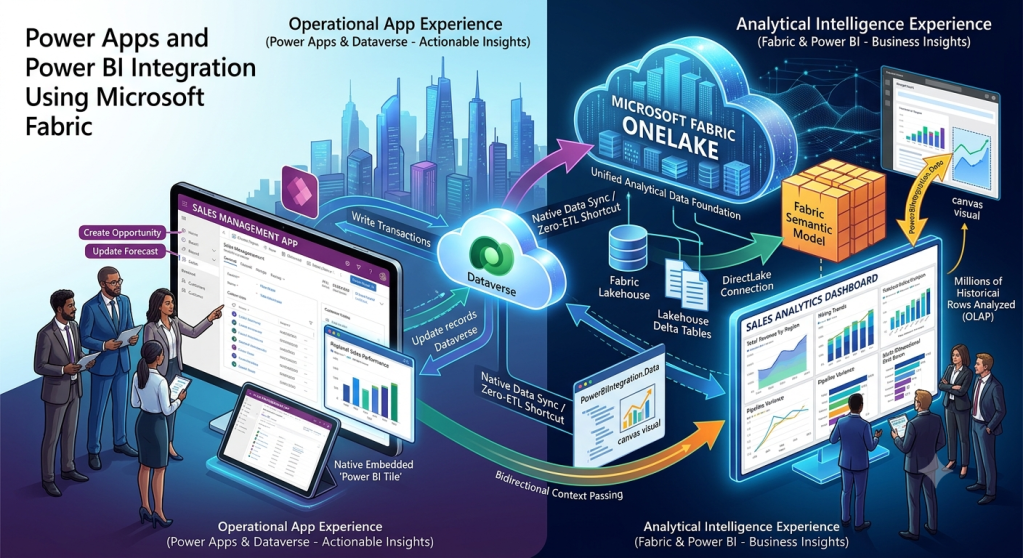
By uniting Power Apps, Power BI, and Microsoft Fabric, organizations bridge the gap between operational workflows and analytical intelligence:
- Power Apps empowers users to execute operational actions.
- Power BI helps users comprehend business trends and performance.
- Microsoft Fabric serves as the unified analytical data foundation.
2. What We Will Learn
This guide covers core integration concepts and implementation patterns:
- Power Apps and Power BI integration patterns
- Embedding Power BI reports directly inside Power Apps
- Leveraging Microsoft Fabric semantic models
- Constructing interactive dashboards and contextual filtering options
- Bidirectional data flow and passing context between Power BI and Power Apps
- Building a real-world sales performance management solution
- Elevating executive analytics inside operational applications
- Security, governance, and system performance optimizations
- End-to-end enterprise implementation architecture
3. Understanding the Roles of Power Apps, Power BI, and Fabric
Before structuring integrations, it is essential to outline the specific responsibilities of each platform component:
| Platform | Primary Responsibility | Practical Example |
| Power Apps | Operational applications | Create and update sales opportunities |
| Dataverse | Business application data | Customers, accounts, opportunities |
| Microsoft Fabric | Enterprise data engineering and analytics | Combine CRM, ERP, and finance data |
| OneLake | Unified analytical data foundation | Centralized organizational data |
| Fabric Lakehouse | Scalable storage & Spark/SQL workloads | Storing Delta files for downstream consumption |
| Fabric Semantic Model | Business-oriented analytical model | Revenue, targets, margins, and KPIs |
| Power BI | Reporting and visualization | Revenue, pipeline, and performance dashboards |
The Unified Data Flow
The data flow lifecycle transitions transactional inputs seamlessly from front-end applications into deep analytical models:
        Business Users
              │
              ▼
          Power Apps
              │
              ▼
           Dataverse
              │
              ▼
       Microsoft Fabric
              │
              ▼
            OneLake
              │
              ▼
       Fabric Lakehouse
              │
              ▼
      Fabric Semantic Model
              │
              ▼
           Power BI
              │
              ▼
    Interactive Business Insights
Note: Analytical data is not always synchronized instantly after every application transaction. Data freshness is dictated by your scheduled pipeline refreshes, streaming configs, and semantic model caching configurations.
4. Why Integrate Power Apps with Power BI?
Integrating operational interfaces with analytics eliminates the traditional divide between executing tasks and reviewing performance metrics.
Without Integration
Sales Representative ──> Power Apps ──> Update Opportunities │ (Separate Experience) │ Power BI Reports ──> Analyze Sales Performance
Users must manually switch between completely siloed applications to understand information and take action.
With Integration
                 Sales Manager
                       │
                       ▼
                   Power Apps
                       │
         ┌─────────────┴─────────────┐
         ▼                           ▼
  Business Tasks                Power BI
         │                   Sales Analytics
         │                           │
         └─────────────┬─────────────┘
                       │
                       ▼
               Business Decisions
Business Benefits
- Better decision-making: Evaluate business KPIs directly alongside operational workflows.
- Improved productivity: Minimize disruptive application switching.
- Contextual insights: Automatically surface data specifically relevant to the active customer, account, or opportunity.
- Faster action: Directly convert analytical findings into executable business tasks.
- Consistent reporting: Reuse enterprise-governed semantic models across applications and reports.
5. Understanding Power BI Integration Patterns
Depending on user experience goals, three primary patterns facilitate the connection between Power Apps and Power BI:
Pattern 1: Embed Power BI Reports Inside Power Apps
Users view interactive Power BI reports embedded right inside model-driven or canvas app forms. For example, a sales manager opening a customer record can view:
- Total revenue generated by the customer
- Open pipeline opportunities
- Historical sales transactions
- Regional performance benchmarks and growth trends
Configuring contextual filtering ensures the report filters automatically based on the unique ID of the active record.
Pattern 2: Use the Power Apps Visual Inside Power BI
This reverses the flow, embedding a fully functional canvas application directly inside an interactive Power BI report.
- A sales manager opens a regional sales performance report.
- The manager selects an underperforming opportunity row.
- The embedded Power Apps visual dynamically reads the selected record’s context via the
PowerBIIntegrationobject. - The manager modifies the opportunity status or creates a follow-up activity inside the app.
- Changes save instantly back to Dataverse without leaving the dashboard.
Pattern 3: Connect Power Apps to Power BI Services
Power Apps features native connectors that allow apps to interface with specific Power BI utility functions—such as querying data alert statuses. This differs from embedding entire visual reports and should be selected when programmatic utility actions are required.
6. Understanding Microsoft Fabric Semantic Models
A semantic model acts as the business-friendly abstraction layer over raw analytical datasets. Instead of forcing individual report developers to parse complex source tables and raw keys, a semantic model packages pre-calculated measures, business entities, and relationships.
             Source Systems
                   │
        ┌──────────┼──────────┐
        │          │          │
        ▼          ▼          ▼
       CRM        ERP       Finance
        │          │          │
        └──────────┼──────────┘
                   │
                   ▼
             Microsoft Fabric
                   │
                   ▼
                 OneLake
                   │
                   ▼
              Lakehouse
                   │
                   ▼
            Semantic Model
                   │
          ┌────────┴────────┐
          │                 │
          ▼                 ▼
       Power BI         Power Apps
       Reports          Experiences
Example Semantic Model Tables & Measures
- Customers, Products, Sales, Opportunities, Regions, Targets, Calendar
Core DAX Measures
Code snippet
// Total RevenueTotal Revenue = SUM(Sales[Revenue])// Total Sales TargetSales Target = SUM(Targets[TargetAmount])// Target Achievement %Target Achievement % = DIVIDE([Total Revenue], [Sales Target], 0) * 100// Open Opportunity ValueOpen Pipeline Value = CALCULATE(SUM(Opportunities[EstimatedRevenue]), Opportunities[Status] = "Open")
7. Building Interactive Dashboards
An effective sales management dashboard coordinates multiple analytical components into a unified interface:
| Dashboard Component | Business Purpose |
| Revenue KPI | Monitor total revenue generation |
| Sales Target KPI | Track percentage progress toward target |
| Regional Sales Chart | Compare performance across territories |
| Product Performance | Identify top-selling product categories |
| Opportunity Pipeline | Monitor potential incoming revenue |
| Monthly Trend | Evaluate historical growth patterns |
8. Passing Context Between Power BI and Power Apps
When integrating a Power Apps canvas visual within Power BI, the application interacts with report selections using the PowerBIIntegration object.
Capturing Selected Data Context
Code snippet
// Retrieve the selected Opportunity ID from the report contextSet( varOpportunityId, First(PowerBIIntegration.Data).OpportunityId);// Query the matching record in the connected data sourceLookUp( Opportunities, OpportunityId = varOpportunityId);
Executing an Operational Update
Code snippet
// Patch updates back to the transactional data sourcePatch( Opportunities, LookUp(Opportunities, OpportunityId = varOpportunityId), { Status: "In Progress" });
Crucial Considerations: Always ensure required context fields are explicitly added to the visual’s data configuration pane, and verify that users maintain independent app-sharing permissions.
9. Real-World Business Scenario: Sales Performance Management
Business Requirement
An enterprise organization managing multi-region sales teams requires a unified application where managers can review KPIs, evaluate regional target gaps, inspect customer histories, and directly edit lagging opportunities.
Solution Architecture
- Power Apps: Frontend operational app interface
- Dataverse: Secure transactional customer and opportunity data store
- Microsoft Fabric & OneLake: Enterprise data integration and lakehouse storage foundation
- Fabric Semantic Models: Centralized DAX business logic layer
- Power BI: Interactive executive dashboards
                 Sales Users
                      │
                      v
              Power Apps Application
                      │
           ┌──────────┴──────────┐
           │                     │
           v                     v
      Dataverse             Embedded Power BI
           │                     │
           v                     │
     Data Integration            │
           │                     │
           v                     │
     Microsoft Fabric <──────────┘
           │
           v
         OneLake
           │
           v
        Lakehouse
           │
           v
    Fabric Semantic Model
           │
           v
       Power BI Reports
           │
           v
   Business Insights & KPIs
Application Workflows
- An executive reviews a regional sales dashboard identifying a territory missing its quota.
- Filtering the report to that specific region highlights the stalling opportunities.
- Interacting with the embedded Power Apps visual selects the record context instantly.
- The manager reassigns the owner and logs a follow-up action plan.
- Dataverse commits the operational change, which propagates to analytical models on the next scheduled refresh cycle.
10. Executive Analytics Inside Business Applications
Embedding analytics transforms traditional transaction-tracking screens into intelligent decision-support engines:
| Business Function | Embedded Analytical Insights |
| Sales | Revenue, pipeline health, target achievement |
| Finance | Profit margins, cash flow, operational expenses |
| Human Resources | Attrition rates, hiring velocity, workforce metrics |
| Operations | SLA performance, resource utilization, efficiency metrics |
| Supply Chain | Inventory levels, fulfillment times, demand projections |
11. Security and Governance Considerations
Because integration merges operational apps with broad reporting data, security must be enforced consistently across layers.
Multi-Layer Security Controls
- Dataverse Security Roles: Govern fine-grained CRUD privileges, business unit separations, and record ownership.
- Power BI Row-Level Security (RLS): Dynamically restrict analytical row visibility based on user identity.
Code snippet
// Example dynamic RLS filter expression using User Principal NameSales[Region] = LOOKUPVALUE( UserRegion[Region], UserRegion[UserEmail], USERPRINCIPALNAME())
Note: RLS rules restrict Viewers, but Workspace Admins, Members, and Contributors retain broader permissions. Always test access boundaries thoroughly using real user accounts prior to production release.
12. Performance Considerations
- Optimize Semantic Models: Define clean relationships, limit custom column proliferation, and streamline DAX formulas.
- Choose Appropriate Storage Modes: Select between Import, DirectQuery, and Direct Lake based on scale and latency requirements.
- Limit Visual Clutter: Avoid overcrowding report pages to maintain fast rendering speeds.
- Delegate Queries: Construct efficient Power Apps filtering expressions that respect server-side data delegation limits.
13. Common Mistakes to Avoid
| Mistake | Better Approach |
| Treating Power BI as an operational database | Store transactional writes in dedicated transactional data stores |
| Duplicating custom calculations across reports | Standardize logic inside governed semantic model measures |
| Ignoring Row-Level Security (RLS) | Design, map, and test analytical access controls early |
| Assuming every report query is real-time | Clearly define and communicate data refresh expectations |
| Forgetting individual app permissions | Ensure Power Apps apps are shared explicitly with report users |
14. Enterprise Implementation Architecture
A scalable enterprise solution is split cleanly into four decoupled tiers:
+------------------------------------------------------+| PRESENTATION LAYER || || Power Apps │ Power BI || User Workflows │ Reports & Dashboards |+------------------------------------------------------+ │ ▼+------------------------------------------------------+| APPLICATION LAYER || || Dataverse │ Power Automate || Business Data │ Business Processes |+------------------------------------------------------+ │ ▼+------------------------------------------------------+| DATA LAYER || || Microsoft Fabric │ OneLake │ Lakehouse || Data Warehouse │ Data Integration |+------------------------------------------------------+ │ ▼+------------------------------------------------------+| ANALYTICS LAYER || || Fabric Semantic Models │ Power BI || Measures | KPIs | RLS | Interactive Reports |+------------------------------------------------------+
Recommended Implementation Sequence
- Gather detailed reporting and operational functional requirements.
- Architect and build the foundational Dataverse data model.
- Identify external analytical source systems.
- Establish the Microsoft Fabric data ingestion pipeline.
- Provision Lakehouse or Warehouse storage targets.
- Build, tune, and validate semantic model measures.
- Develop primary Power BI reports and dashboards.
- Embed analytics into Power Apps or embed apps within Power BI.
- Configure enterprise security roles and RLS policies.
- Test end-to-end performance, rendering speeds, and data freshness.
- Deploy packaged solutions across managed environments.
- Monitor capacity utilization, query performance, and ongoing business adoption.
15. Key Takeaways
- Power Apps delivers tailored operational business experiences.
- Power BI provides interactive reporting and exploratory data analysis.
- Microsoft Fabric anchors a unified analytical data foundation.
- Semantic Models ensure consistent, reusable enterprise calculations.
- Contextual integration bridges the gap between passive insight and active execution.
- Security, licensing, data freshness, and rendering performance must be planned from day one.
What’s Next?
Article 7: Building End-to-End Enterprise Business Applications with Power Apps and Microsoft Fabric
In the final article of this series, we will synthesize all preceding concepts to explore a complete enterprise implementation, spanning advanced architectural patterns, process automation, and full application lifecycle management (ALM). 🚀
Discover more from Common Man Tips for Power Platform, Dynamics CRM,Azure
Subscribe to get the latest posts sent to your email.

